Projects
Last updated on
Projects are multi-file, job-relevant coding exercises that provide candidates with a complete Visual Studio (VS) Code-based development environment with terminal access, extensions, debugging, and all the default VS Code features. They let candidates build, run, test, and debug code just as they would at work—using packages, tools, and workflows they already know.
Key features of projects include:
- Full VS Code IDE experience with terminal access, debugging tools, and extension support
- Multi-file support for complex, realistic coding scenarios
- Custom packages and libraries installation capabilities
- AI-enabled environment with optional AI chat assistance
- Auto-grading capabilities with comprehensive test reporting
- Live front-end rendering for web development projects
- Database support for backend and full-stack assessments
- Git integration for version control workflows when creating projects
Projects transform coding assessments from isolated puzzles into authentic development experiences where candidates can demonstrate the full spectrum of their technical abilities.
Why Projects matter in the age of AI
- Richer, job-relevant signals. Projects mirror real engineering work (multi-file repos, tooling, debugging, tests) so you can assess the skills that matter on the job—not just algorithm skills.
- Skills are shifting. As AI becomes more powerful and embedded in daily workflows, developers spend less time writing basic snippets and more time on higher-level work: reviewing code, debugging, optimizing performance, stitching together multiple AI-generated suggestions, and making sound architectural decisions.
- Reduce cheating with real-world tasks. Project questions make copy-paste answers harder to pass. AI may help with pieces of the work, but realistic constraints (configs, tests, data, build steps) require genuine understanding to reach a complete solution.
- (Optional) Measure AI effectiveness. When enabled, Projects let you see how candidates prompt, evaluate AI output, and integrate it responsibly—providing signal on an increasingly critical skill: coding with AI.
How to add Projects to a test
There are two ways to incorporate projects into your tests:
Method 1: From the Questions page
- Navigate to the Questions page
- Use the filter dropdown to select Project exercise as the question type
- Browse our curated library of ready-to-use projects
- Click Create test for your selected projects
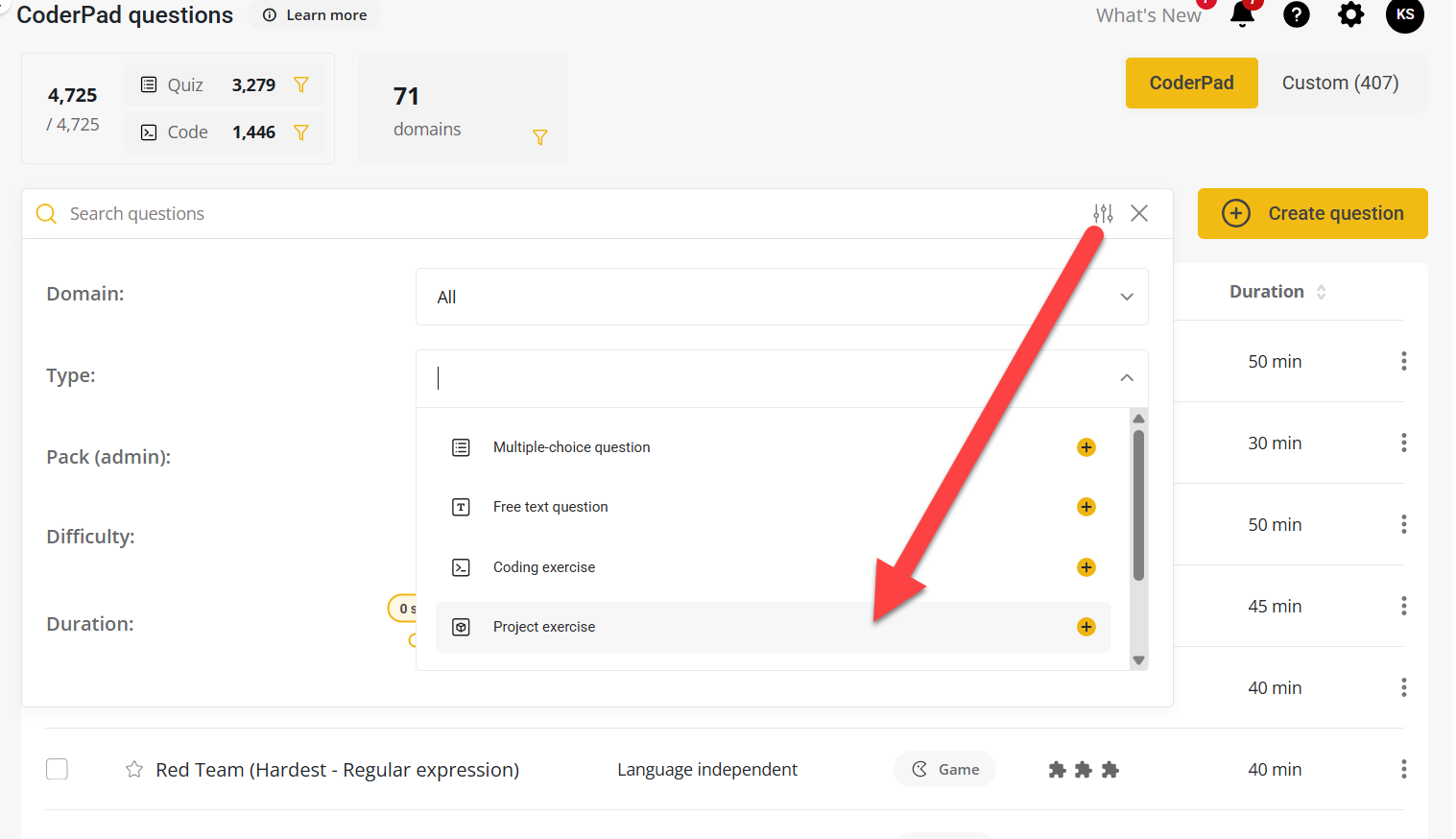
Method 2: From within a Test
- Open the test where you want to add a project
- Click the Add a question button
- Filter the question type to Project exercise
- Select from available projects

How to create a custom Project
For maximum flexibility and alignment with your specific requirements, you can create completely custom Projects tailored to your organization’s tech stack and coding challenges. You can find more documentation on custom Project questions here.
How to review submissions with Projects
IDE-based review
- From a candidate’s detailed report, click Open in IDE for any submitted project
- Navigate to the source control icon to see all changes made during the assessment
- Review file modifications, additions, and deletions

Enhanced playback system
Projects feature an enhanced playback system that captures not just code changes, but every interaction within the IDE:
- Complete session recording showing mouse movements, clicks, and navigation patterns
- AI interaction logs displaying exactly how candidates prompted and used AI assistance
- Debugging session insights showing problem-solving approaches and troubleshooting methods

✅ View playback in full-screen mode for the most comprehensive review experience.