Custom Project questions
Last updated on
To create a custom project, navigate to the Questions page and click Create question, then select Project. This opens the project creation workflow, where you’ll design a complete coding environment tailored to your specific assessment needs.
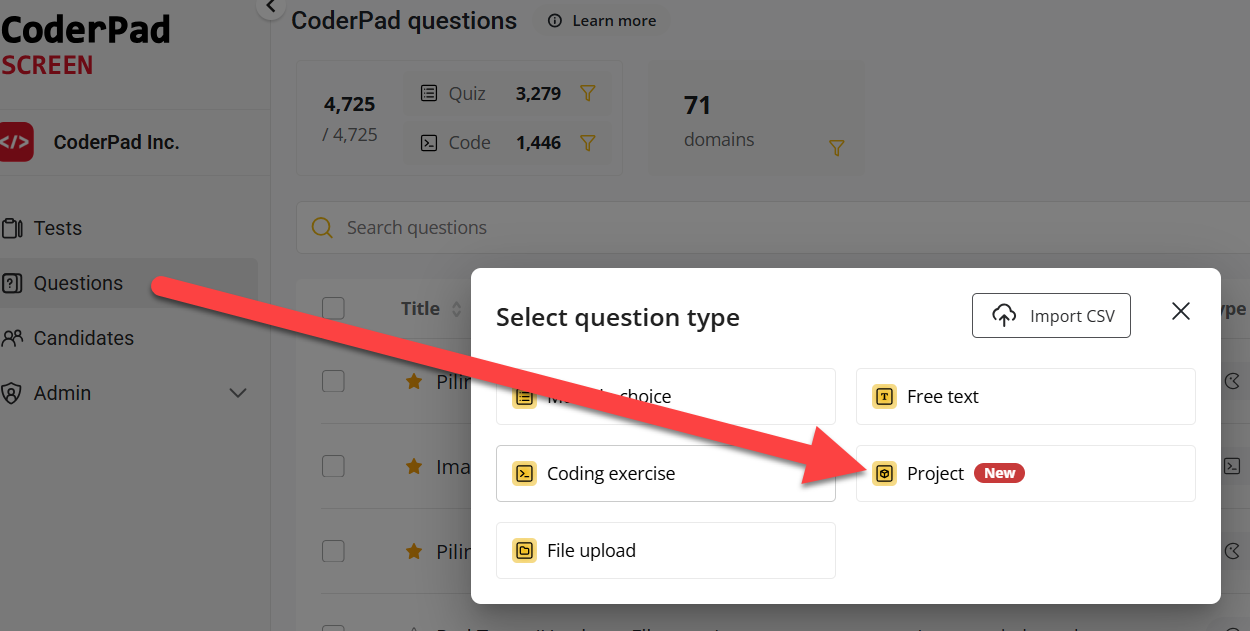
Selecting a template
Templates are preconfigured minimal projects built around specific technology combinations, designed to serve as starting points for your custom projects.
Templates are intentionally minimal to provide a clean foundation while giving you complete flexibility to customize the environment for your specific requirements.
/quote

Editing your project in the IDE
Once you select a template, scroll down to the Project section and click Edit your project in IDE. You’ll enter a full-featured VS Code environment where you can design your project.

What’s available in the IDE
![Screenshot of the CoderPad Screen 'Project edition' interface. The left sidebar shows a project folder named 'PROJECT [CODERPAD]' containing files: .coderpad, .vscode, .gitignore, and instructions.md (selected). The main editor displays the instructions.md file with markdown text explaining how to use the project template, save work, and define instructions. A right-hand panel labeled 'AI Assist' shows the ChatGPT logo with a prompt field. At the bottom right, a yellow button labeled 'Update project' is visible](https://coderpad.io/wp-content/uploads/2025/09/image-6.png)
Your custom project environment includes all standard VS Code features:
- Integrated terminal with full command-line access for package installation, script execution, and system operations
- IntelliSense providing intelligent code completion, parameter hints, and error detection
- AI assistant to get help refining your project
- Extension marketplace access to install language-specific tools and productivity enhancers
- Built-in debugger supporting multiple programming languages with breakpoints, variable inspection, and call stack analysis
- Git integration for version control workflows and change tracking
ℹ️ Environment configurations
- Projects run inside isolated Linux x64 containers.
- Project size (maximum size of the repository): 50MB
- Disk space (storage available to candidates during their project): 5GB
- Memory (RAM): 2GB
Candidate instructions
Every project must include an instructions.md file containing your problem statement and setup guidance. It uses markdown syntax. This file is automatically opened and rendered when the candidate starts the question.
Use it for:
- Problem statement and acceptance criteria
- Setup/run steps and environment notes
- Any constraints, expectations, or deliverables
coderpad/settings.json file
The .coderpad/settings.json file controls critical project behavior and must be configured properly for optimal candidate experience.
Example
{
    "files.exclude": ["solution.md"],
    "workbench.defaultOpenFiles": ["src/App.tsx"],
    "autograding": {
        "runCommand": "rm -f result.tap && npm ci && npx jest --ci --reporters=default --reporters=jest-tap-reporter > result.tap",
        "reports": {
            "TAP": ["result.tap"]
        }
    }
}Code language: JSON / JSON with Comments (json)
Configuration options
- Open files: Specify which files should be open by default when candidates start the project (in addition to
instructions.md). This helps direct their attention to starting points or key files. - Excluded files: List files and directories that won’t be included in the candidate’s project environment.
- Autograding logic: Define how automated tests should run and report results (detailed in the auto-grading section below).
Recommend extensions
Use the standard VS Code file .vscode/extensions.json to recommend extensions. Example:
{
  "recommendations": [
    "Orta.vscode-jest"
  ]
}Code language: JSON / JSON with Comments (json)
When candidates start your project, they’ll receive notifications suggesting these extensions, helping them set up an optimal development environment quickly.
Pre-install extensions
You can define a list of extensions that will install automatically at project startup, for both recruiters and candidates.
To set this up, add your extensions to the vscodeExtensions.installedByDefault field in your project’s .coderpad/settings.json file. Here’s an example:
{
    "vscodeExtensions.installedByDefault": [
        "ms-python.python",
        "esbenp.prettier-vscode"
    ]
}Code language: JSON / JSON with Comments (json)
Allowed & restricted extensions
You can also block candidates from installing certain extensions.
⚠️ If the setting is not configured, all extensions are allowed. If the setting is configured, all extensions that are not listed are blocked from installing
For example, the following means that all extensions are not allowed, except GitHub and Microsoft ones.
{
     "extensions.allowed": {
          "github": true,
          "microsoft": true
     }
}Code language: JSON / JSON with Comments (json)
For more information on how to allow or disallow certain extensions (including different versions), check out the VS Code documentation here.
AI Assistant
The AI Assistant can be enabled or disabled at the test level through test settings. If enabled:
- Candidates see an AI assistant panel and can chat with an available model.
- AI conversations appear in playback for reviewers.
Front-end render
For web development projects, the VS Code Simple Browser module automatically renders your application, providing candidates with immediate visual feedback.
- When your development server starts on any available port, the Simple Browser opens automatically
- The Ports view in the VS Code panel shows all forwarded ports and their status
Web preview
For web development projects, a web preview component can be used to render your application, providing candidates with immediate visual feedback. To enable a web preview in your projects, configure the exposed service in the .coderpad/settings.json file using the following fields:
mode: Use this mode to enable the web previewopenByDefault: Determines whether the preview opens automatically when the project startsport: Specifies which port the preview will map toname: Set a custom display name for your app
For example:
"exposed": [
    {
        "mode": "browser",
        "openByDefault": true,
        "port": 5173,
        "name": "MyApp"
    }
]Code language: JSON / JSON with Comments (json)
Connecting to a database
You can attach PostgreSQL or MySQL databases to any project through the Execution environment section of the question editor.

Connection credentials are provided through environment variables. For example:
username: process.env.POSTGRES_LOGINpassword: process.env.POSTGRES_PASSWORDhost: 'screen-execute-environment-node-postgres'
ℹ️ Database RAM limitations
- PostgreSQL: 200MB
- MySQL: 500MB
Git integration
Projects include a default .gitignore to keep ephemeral or build artifacts out of version control. As you edit your project, you will be able to keep track of all changes through the Source Control module.
When you start editing your project, a branch is created. When you click Update project, your changes are automatically committed and pushed to the remote project repository.
Once you save the question, the pushed commits are merged on main, and a release is created. Advanced users can manage commits manually through VS Code’s Source Control panel.
How to save your work
- Save all files in VS Code (Ctrl/Cmd + S)
- Click Update project at the bottom of the screen
- Close the IDE
- Click Save at the bottom of the question page
⚠️ Your temporary branch containing your updated project will only be merged into the main branch once you have saved the question from the question editor.
Auto-grading
A properly configured .coderpad/settings.json file is required for auto-grading functionality. The configuration defines how tests run and where results are stored.
Configuration example
{
  "autograding": {
    "reports": {
      "TAP": ["result.tap"]
    },
    "runCommand": "rm -f result.tap && npm ci && npx jest --ci --reporters=default --reporters=jest-tap-reporter > result.tap"
  }
}Code language: JSON / JSON with Comments (json)
Run command requirements
The runCommand must be designed to work in a fresh container environment and should:
- Install dependencies: Use
npm ci,pip install -r requirements.txt, or equivalent - Execute tests: Run your testing framework with appropriate reporters
- Generate reports: Output results in TAP or JUNIT format
- Handle cleanup: Remove old result files to prevent conflicts
Running Multiple Test Suites (Backend + Frontend)
If your Project runs multiple test suites (for example, backend tests and frontend tests), we strongly recommend using one wrapper script (e.g., run-all-tests.sh) instead of running commands sequentially using operators like &&.
command1 && command2prevents the second suite from running if the first suite fails.- Some templates clean the
junit-reportsdirectory at the start of each script, which can erase reports produced earlier.
Recommended pattern
Create a wrapper script:
#!/bin/bash
SCRIPT_DIR="$(cd "$(dirname "${BASH_SOURCE[0]}")" && pwd)"
PROJECT_ROOT="$SCRIPT_DIR"

# Clean up reports once
rm -rf "$PROJECT_ROOT/junit-reports"
mkdir -p "$PROJECT_ROOT/junit-reports"

./run-backend-tests.sh
./run-frontend-tests.shCode language: Bash (bash)
Update .coderpad/settings.json:
"runCommand": "./run-all-tests.sh"Code language: JSON / JSON with Comments (json)This ensures all test suites run and produce the expected combined test results.
Correct Cleanup Behavior
Clean the reports directory once at the beginning, not inside each test script.
Avoid this inside test scripts:
rm -rf junit-reportsCode language: Bash (bash)If cleanup occurs inside multiple scripts, one suite may delete the reports produced by another.
PATH Differences Between IDE and Auto-grader
The PATH inside the auto-grader container may differ from what you see in the IDE terminal.
If a command works in the terminal but fails during auto-grading:
- Use the absolute path of the command. Example for Node.js Projects:
/home/coderpad/.volta/bin/npm install
/home/coderpad/.volta/bin/npm testCode language: Bash (bash)
This ensures consistent behavior between Preview, Sync, and candidate grading.
Skipped Tests Are Not Imported
Auto-grading can only import test cases that appear in JUnit/XUnit/TAP reports.
If a test is skipped (e.g., pytest.skip()):
- It may not appear when clicking Sync from project
- It will not be included as an evaluation criterion
Instead of skipping, force a failing assertion:
assert False, "Table X does not exist"Code language: PHP (php)This ensures visibility during setup and accurate imports.
Supported report formats
Your test command should generate test reports in either TAP or JUnit format. The reports variable defines where test reports are written and in which format (TAP or JUNIT).
Evaluation criteria configuration
Once you’ve configured your settings.json file, you can customize how automated tests affect your reports through the Evaluation criteria section in the question editor.
In the Automatic section, click Sync from project to import test cases from your project. The system will boot a fresh environment, run your runCommand, parse the generated reports, and display individual test cases for configuration.
For each imported test, you can customize:
- Label:
- Provides a human-readable description displayed in reports
- Helps reviewers understand what each test validates
- Skill:
- Groups points under specific skill categories (e.g., Problem Solving, Reliability)
- Each evaluation criterion contributes points to its assigned skill
- Points:
- Adjust the weight from 0 to 5 to allocate more or fewer points to each test
- Higher weights = more points allocated
- Total question points are distributed proportionally across all criteria based on their weights
Manual grading
You can complement automated testing with manual criteria for qualitative signals (e.g., code structure, readability, tests quality, security).
If manual criteria are defined, when candidates complete their test, you’ll receive an email to manually grade their work against these criteria.
Each project must include at least one evaluation criterion (automatic or manual).
AI-assisted reviews
AI-assisted review now includes the conversations between candidates and AI Assist during a Screen Project — not just their code and files.

What this gives you
Reviewers can see how a candidate worked with AI throughout the project: which suggestions they applied, where they pushed back, where they struggled, and whether they leaned on AI heavily or barely used it. This makes it possible to evaluate a candidate’s AI fluency alongside their technical output — an increasingly common requirement for engineering hiring.
Where to find it
AI conversations analysis is available in the Manual evaluation section of the candidate’s report, alongside the other AI-assisted review tools (project analysis, and more coming soon).
Availability
• Included for all Enterprise customers with AI-assisted review enabled.
• No setup required — the feature works retroactively on all prior AI-enabled test submissions.
• Works across both AI suggestions and AI scoring review modes.
Review modes recap
• AI suggestions — AI assists the reviewer; reviewer makes the final call.
• AI scoring — AI scores the submission automatically against your criteria.
File visibility
You can hide files/folders using the hiddenValidationFiles setting in .coderpad/settings.json.
Example:
{
  "autograding": {
    "hiddenValidationFiles": ["docs/**"]
  }
}Code language: JSON / JSON with Comments (json)
ℹ️
uses glob patterns, not literal folder names.hiddenValidationFiles
This:
"hiddenValidationFiles": ["docs"]Code language: JavaScript (javascript)hides only the folder itself, not its contents.
To hide the folder and all children, use:
"hiddenValidationFiles": ["docs/**"]Code language: JavaScript (javascript)This pattern hides:
docs/docs/file.mddocs/subfolder/...
More glob pattern documentation: https://code.visualstudio.com/docs/editor/glob-patterns
Does file hiding work in Preview mode?
Yes — Preview reflects candidate visibility.
If hidden files still appear:
- Confirm you used
/** - Save the Project and click Update project
- Remove + re-add the question to the test (to refresh cached structure)
- Ensure the path matches the workspace root
Additional examples
{
  "files.exclude": [
    ".env",            // hide a single file
    "docs/**",         // hide entire folder
    "scripts/*.sh",    // hide matching files
    "**/*.spec.js"     // hide all test files anywhere
  ]
}Code language: JSON / JSON with Comments (json)
Sync from project
When you click Sync from project, CoderPad:
- Bootstraps a fresh environment
- Runs your
runCommand - Parses any generated test reports
- Shows test cases that appear in those reports
However, Sync from project does not:
- Verify that your command works for all candidate submissions
- Guarantee correct PATH or environment behavior
- Ensure test suites run in the correct order
- Validate the correctness of your scoring
- Detect cleanup issues or glob mismatches
In other words, Sync verifies report availability, not complete correctness.
Testing your question without using quota (Preview mode)
Before assigning a Project to candidates:
- Open the Project question.
- Click Preview.
- Apply your intended solution or partial solution.
- Submit the preview.
- Examine:
- Points awarded
- Parsing of JUnit/TAP files
- Report rendering
- Expected pass/fail behavior
Preview submissions do not consume quota and are the recommended method for validating Projects end-to-end.
Re-grading
Currently, it is not possible to automatically re-run auto-grading for submissions that were completed before a Project was updated.
If configuration issues were fixed after candidates submitted:
You can:
- Adjust scoring manually using the “Fix an Incorrectly Marked Question” feature
- Update the Project for future candidates